Arch Linux Setup
Installation#
Don't laugh! I use the archinstall to speed the process up of installation.
I use the LTS Linux kernel, and elect to use BTRFS with disk encryption.
Packages#
All packages I install for Arch.
Packages
# Packages

## OS
base
base-devel
efibootmgr
linux
linux-firmware
zram-generator

## Firmware
intel-ucode

## FS
btrfs-progs
snapper

## Networkings
bluez
bluez-utils
networkmanager

## Terminal
man-db

## Sound
gst-plugin-pipewire
libpulse
pipewire
pipewire-alsa
pipewire-jack
pipewire-pulse
sof-firmware
wireplumber

## DE
plasma-meta
sddm
konsole
dolphin
ark
xclip

## Utilities
kalk
bitwarden

## Web Browsers
firefox

## Code
git
openssh
neovim
extra/code

## Shell
zsh
zsh-syntax-highlighting
shellcheck

## Python
python
python-pip
KDE Setup#
I prefer using KDE as my Desktop Environment.
KDE Theme#
I use the default light theme.
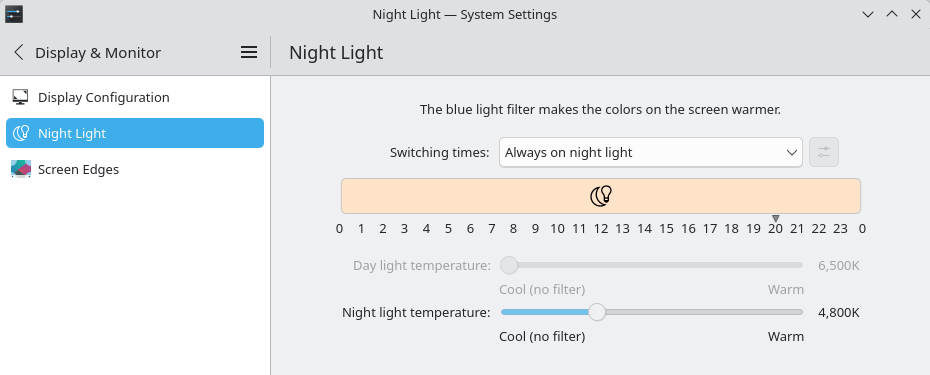
KDE Nightlight#
I use a subtle night light:
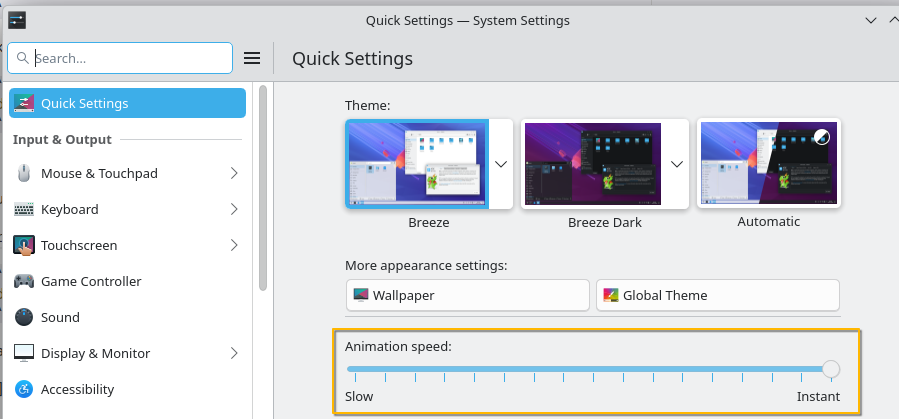
KDE Animation#
I use instant animations:
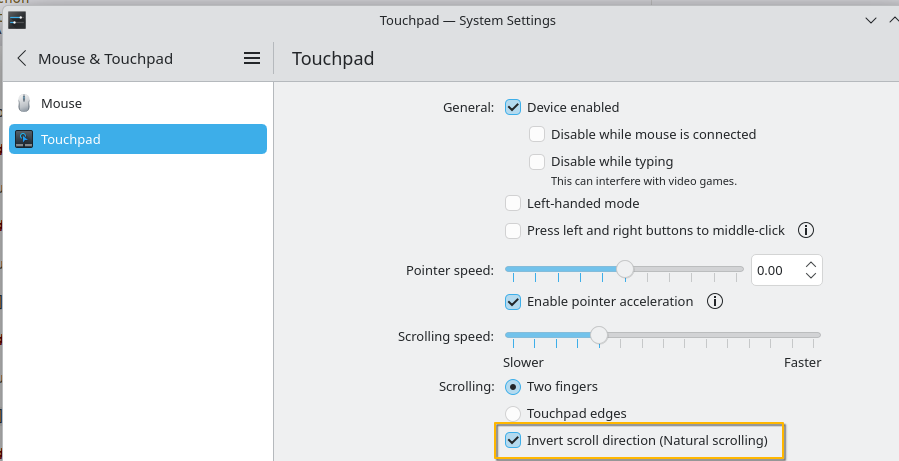
KDE Natural Scrolling#
I prefer the "natural scrolling" behavior for touchpad:
KDE Clipboard#
Adjust the clipboard settings:
Found on the system tray settings.
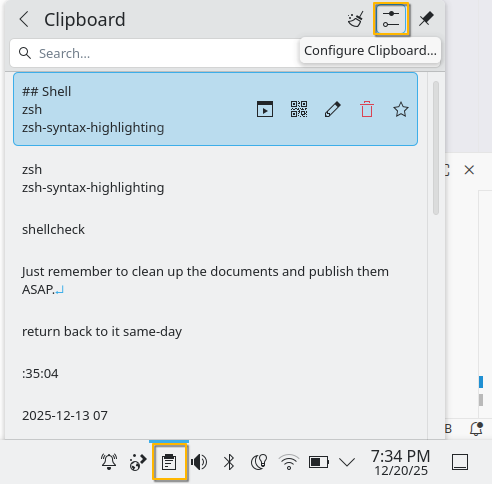
I like to set it to have 200 entries that persist accross sessions.
KDE Disable Notification Noises#
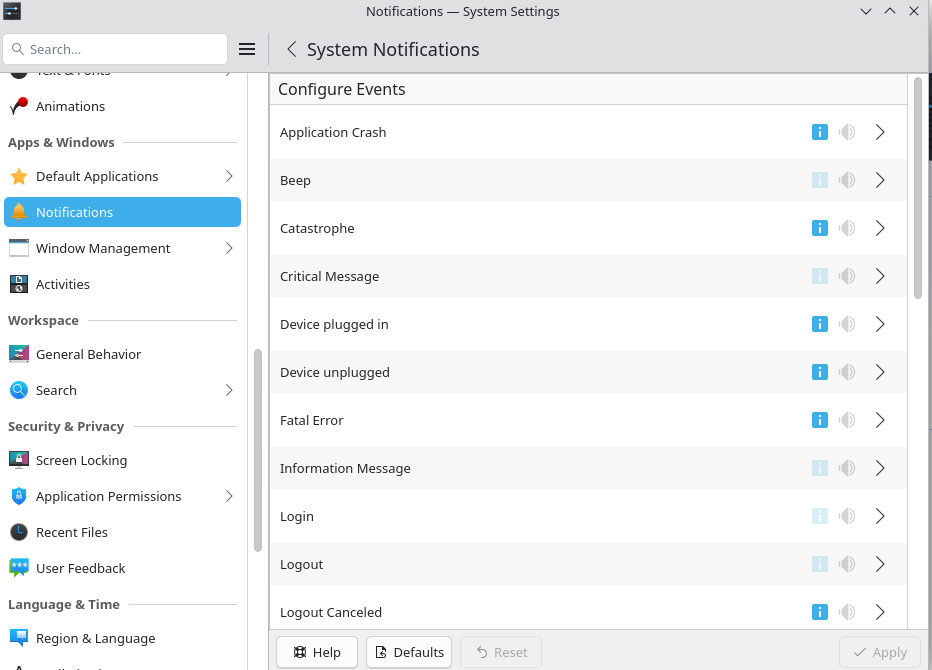
Disable notification noises:
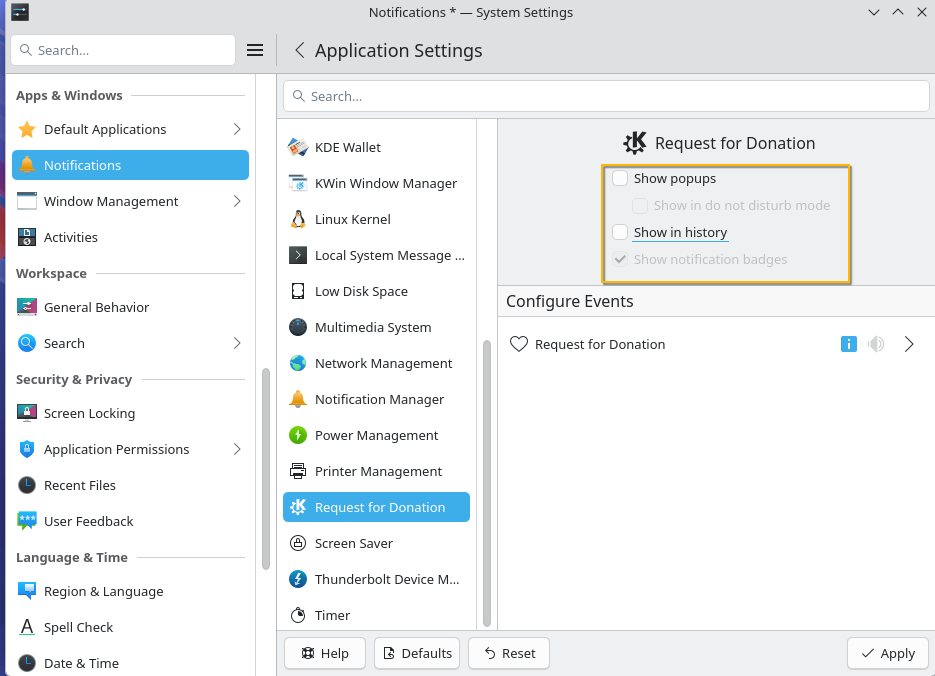
KDE Disable Donation Reminders#
I don't like pop ups:
Zsh Setup#
I use zsh as my default shell with a few quality of life features.
.zshrc
# --- [name] path/ $ --- #

PS1='[%n] %~/ $ '

# --- Insensitive Case Tab Complete, No Auto Menu --- #

autoload -Uz compinit && compinit
zstyle ':completion:*' matcher-list 'm:{a-z}={A-Za-z}'
setopt menu_complete
unsetopt AUTO_LIST

bindkey '^[[Z' reverse-menu-complete

bindkey '^ ' expand-or-complete-prefix

# --- Control Movement and Delete --- #

bindkey '^[[1;5C' forward-word
bindkey '^[[1;5D' backward-word

bindkey -M emacs '^H' backward-kill-word
bindkey -M emacs '^[[3;5~' kill-word

# --- Dark Magic Select All And Delete [AI + https://github.com/AndydeCleyre/dotfiles-zsh/blob/main/inline_selection.zsh] ---

# Key: Ctrl+A
# shellcheck disable=SC1009
.zle_select-all () {
  (( CURSOR=0 ))
  (( MARK=$#BUFFER ))
  (( REGION_ACTIVE=1 ))
  # shellcheck disable=SC1073
  # shellcheck disable=SC1050
  # shellcheck disable=SC1072
  # shellcheck disable=SC1141
  if (( $+functions[_zsh_highlight] )) _zsh_highlight
}
zle -N .zle_select-all
bindkey '^A' .zle_select-all  # ctrl+a

# Key: Backspace
.zle_backspace-or-undo () {
  if [[ $LASTWIDGET == *complet* ]]; then
    zle .undo
  else
    if (( REGION_ACTIVE )); then
      zle .kill-region
    else
      zle .backward-delete-char
    fi
  fi
  if (( $+functions[_zsh_highlight] )) _zsh_highlight
}
zle -N .zle_backspace-or-undo
bindkey '^?' .zle_backspace-or-undo  # backspace

# --- Shift Select and Delete / Copy Tools --- #

# git clone https://github.com/jirutka/zsh-shift-select ~/.local/share/zsh/plugins/zsh-shift-select
# shellcheck disable=SC1090
source ~/.local/share/zsh/plugins/zsh-shift-select/zsh-shift-select.plugin.zsh

# --- Syntax Highlighting --- #

# Syntax highlighting
# shellcheck disable=SC1094
source /usr/share/zsh/plugins/zsh-syntax-highlighting/zsh-syntax-highlighting.zsh # Arch
Reload zsh:
source ~/.zshrc
Make your current user's default shell zsh:
sudo chsh -s $(which zsh) $USER
This setting will apply after logout.
Jetbrains#
I use Jetbrains' IDEs.
First, install Jetbrains dependencies:
sudo pacman -S libxi libxrender libxtst mesa-utils fontconfig gtk3 tar dbus-broker-units
Grab the most recent tarball from Jetbrains:
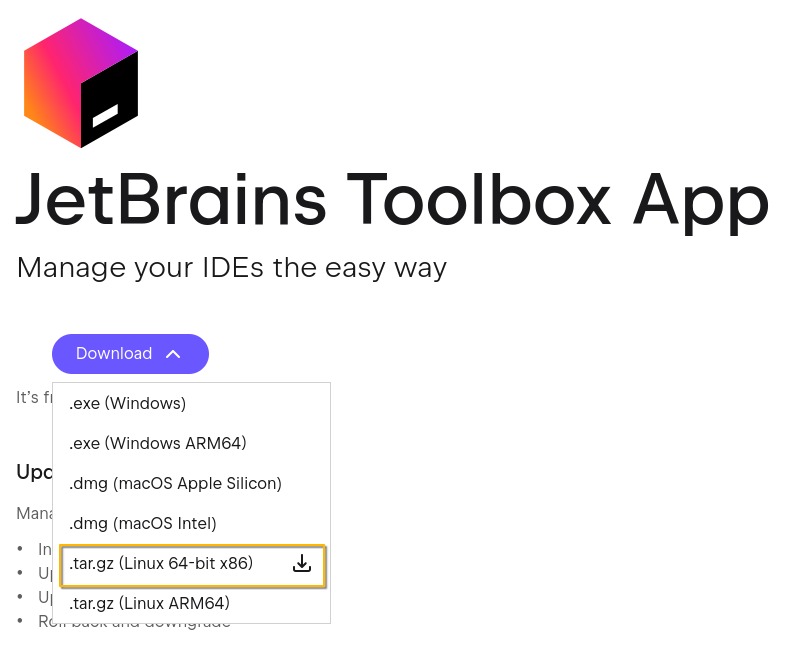
I install in a local ~/.local/share/Jetbrains/Toolbox folder.
mkdir -p ~/.local/share/Jetbrains/Toolbox && cd $_
mv ~/Downloads/jetbrains-toolbox-* .
tar -xf jetbrains-toolbox-*
rm jetbrains-toolbox-*.tar.gz
mv jetbrains-toolbox-* jetbrains-toolbox
I will then execute the installer:
/jetbrains-toolbox/bin/jetbrains-toolbox
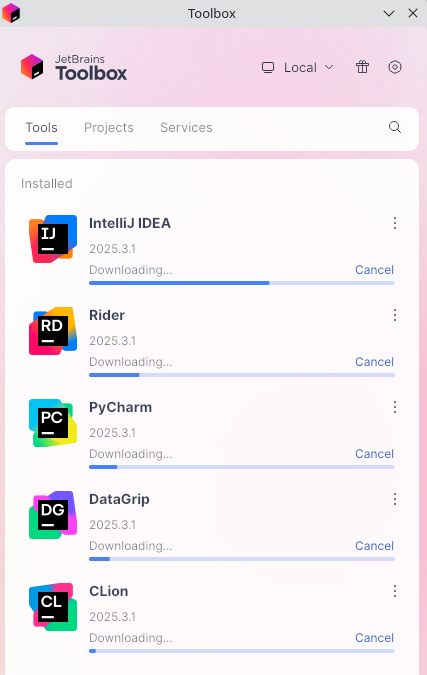
Install desired tools:
More info here
Virtual Machines#
I prefer Virtualbox for familiarity.
Since I use the LTS Kernel I will select virtualbox-host-modules-lts:
If I wasn't, I'd use virtualbox-host-modules-arch
sudo pacman -S virtualbox virtualbox-host-modules-lts virtualbox-guest-iso
Next, enable the kernel modules:
sudo modprobe vboxdrv vboxnetadp vboxnetflt
sudo vboxreload
As a CoW user (BTRFS), I will disable CoW on the VM folder to avoid thrashing.
mkdir "$HOME/VirtualBox VMs"
sudo chattr +C "$HOME/VirtualBox VMs"
lsattr -d "$HOME/VirtualBox VMs"
# ---------------C------ = CoW off
I will give myself vboxuser permissions
sudo usermod -aG vboxusers $USER
groups $USER
We will now reboot to ensure everything persists upon reboot.
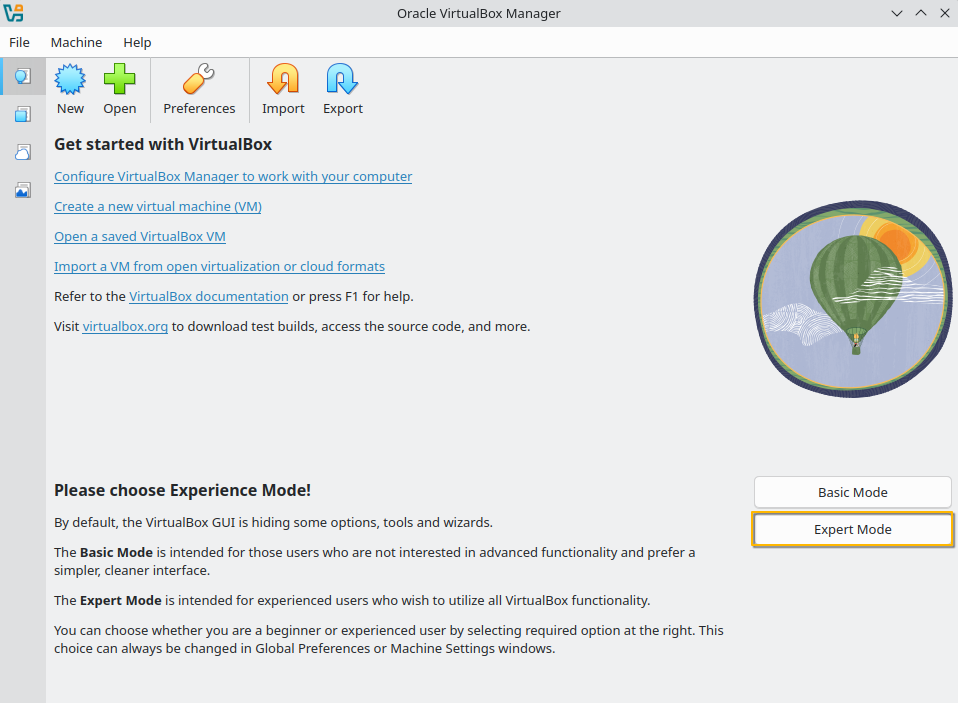
Upon opening, enable Expert Mode: